
In this issue, we will share an Obsidian plug-in—ZotFlow
This plug-in connects Zotero's literature database and Obsidian's knowledge base, enabling metadata synchronization and two-way update of notes. It is simple to install and configure, supports custom templates, and is suitable for Obsidian users who need to efficiently manage academic documents.
Let’s talk about this plug-in in detail
How to install
1. Obsidian third-party plug-in installation
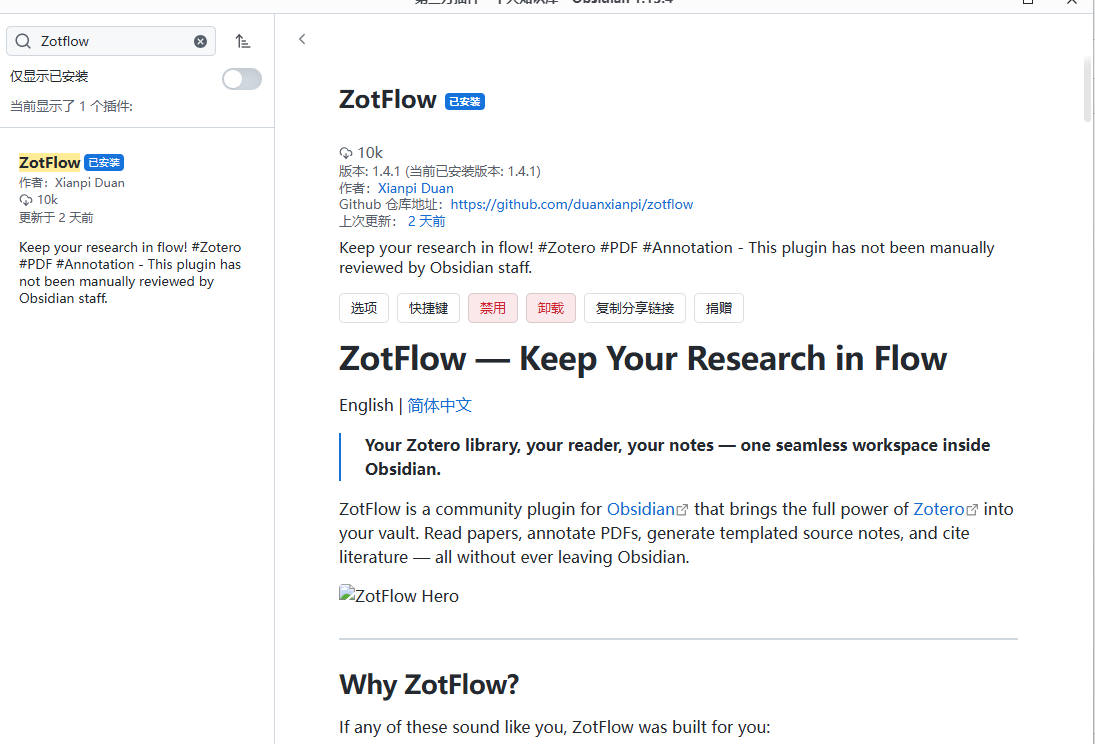
2. Pre-release version (BRAT)
- Install BRAT
- Obsidian → Settings → Community plugins
- Browse search for "BRAT", install and enable
- Add ZotFlow Beta
- Click next to BRAT in Community plugins Options
- Click Add Beta plugin
- Enter the warehouse address:
duanxianpi/obsidian-zotflow - Click Add Plugin
- Enable ZotFlow- Back to Settings → Community plugins, find ZotFlow and open it
Configuration
1. First connect to Zotero
Prerequisite: Zotero data synchronization
ZotFlow obtains library data through the Zotero Web API, so your entries must have been synced to the Zotero Cloud:
- Open Zotero Desktop → Edit → Settings → Sync(on macOS Zotero → Preferences → Sync)
- Log in to your Zotero account and confirm Data Syncing is enabled
- Click Sync(green circular arrow) and wait for completion
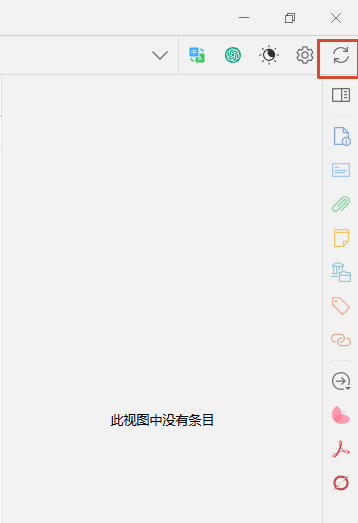
ZotFlow obtains library data through the Zotero Web API, so your entries must have been synced to the Zotero Cloud:
Of course, you don’t have to worry about the limited storage space of the free version. This plug-in can use other clouds for PDF and other attachments.Web Dev(such as Nut Cloud) or local
References are stored in Linked files(such as OneDrive, iCloud), and metadata is synchronized with the cloud (cloud data takes up very little storage space)
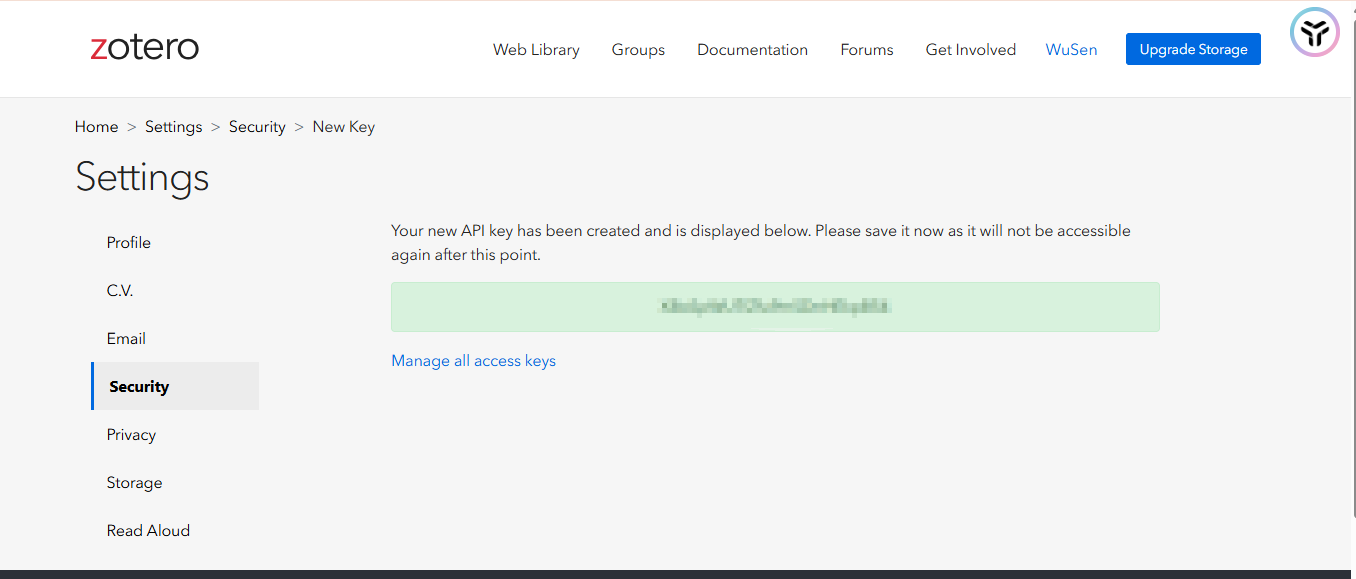
Create API Key
- Give Key a descriptive name (such as "ZotFlow")
- in Personal Library Next, check Allow library access and Allow write access(the latter is the prerequisite for bidirectional sync)
- To edit Zotero Item Note, check Allow notes access
- If you use the Group Library, authorize the target Group on demand
- Click Save Key and copy the generated Key
2. Connect to ZotFLow
Click Verified to verify
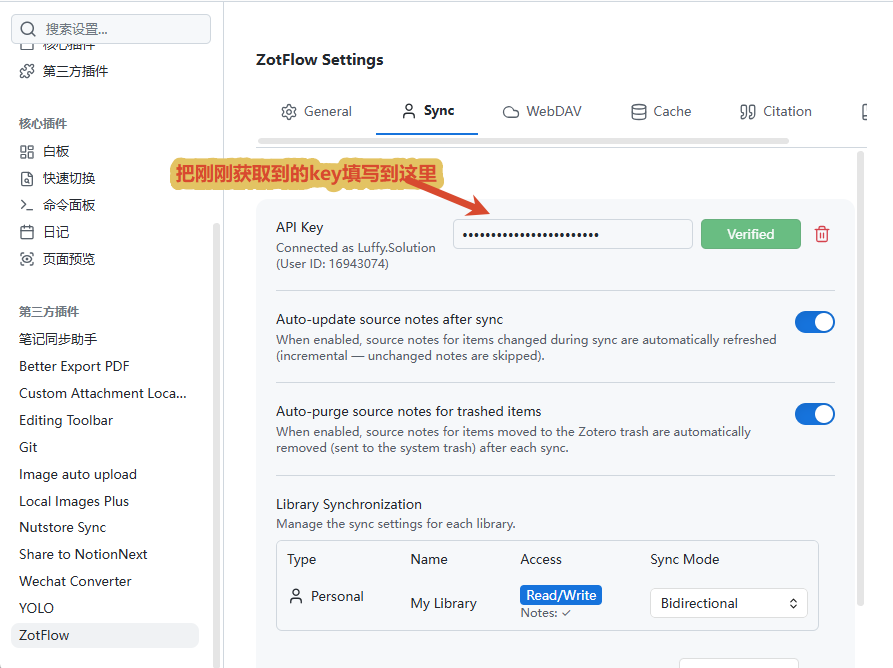
Sync Mode is the synchronization mode, select according to the situation:
- Bidirectional — pull + write back (recommended for personal master library)
- Read Only — pull only (suitable for shared group libraries and review scenarios)
- Ignored — skip when synchronizing
3. Prepare attachment storage (optional)
This step is optional, you can still use it if you skip it:
- Literature search;
- Reference insertion;
- Synchronize Source Note;
- Synchronize title, author, abstract, DOI;
- Synchronize Zotero notes and annotation information.
Knowledge cannot open PDF that has not been downloaded to local and perform PDF annotation and zotero two-way synchronization in Obsidian
Configuration is divided into two situations,
Scenario 1: Using metadata + WebDAV attachment:
Document metadata → Zotero official free synchronization
PDF Attachment → WebDAV
Obsidian → ZotFlow read on demand
This situation is suitable for large-scale scientific research document databases. A cheaper and more stable method is to use Nut Cloud as cloud storage.
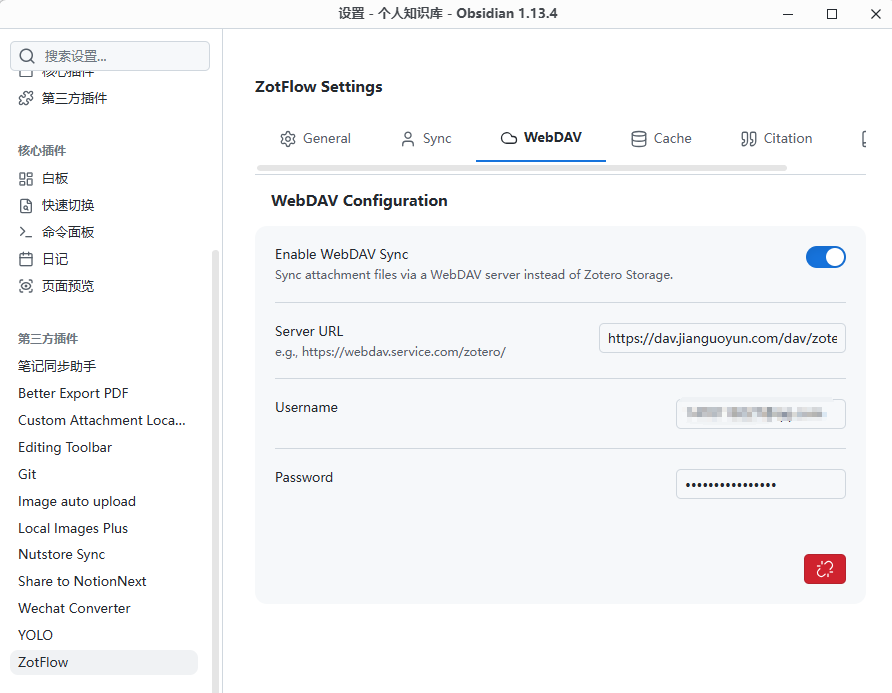
Here I take Nut Cloud as an example:
The above URL uses the same configuration as zotero, that is
https://dav.jianguoyun.com/dav/zotero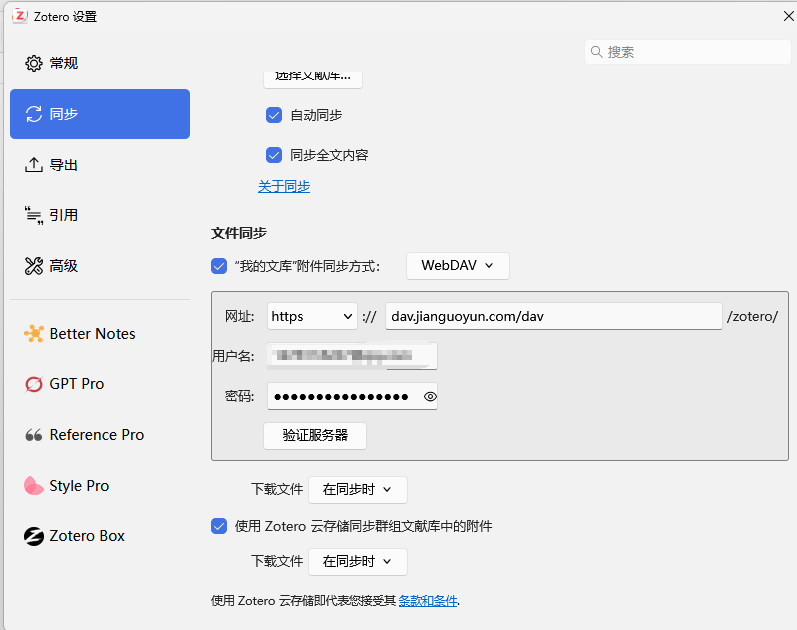
Remember to synchronize zotero to Nut Cloud first, otherwise Nut Cloud will not have zotero local attachments
Then open the Nut Cloud client
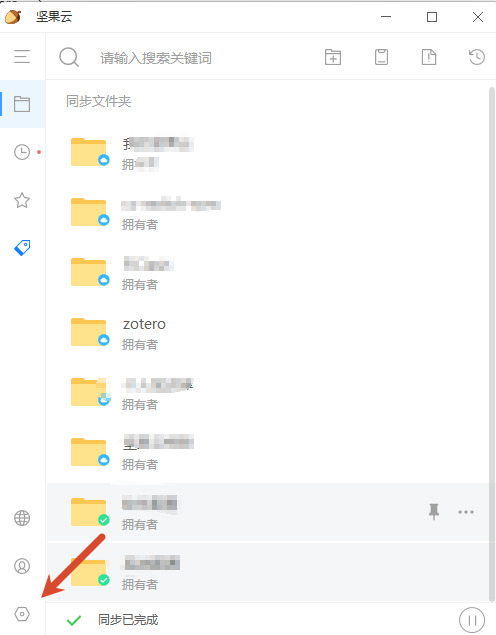
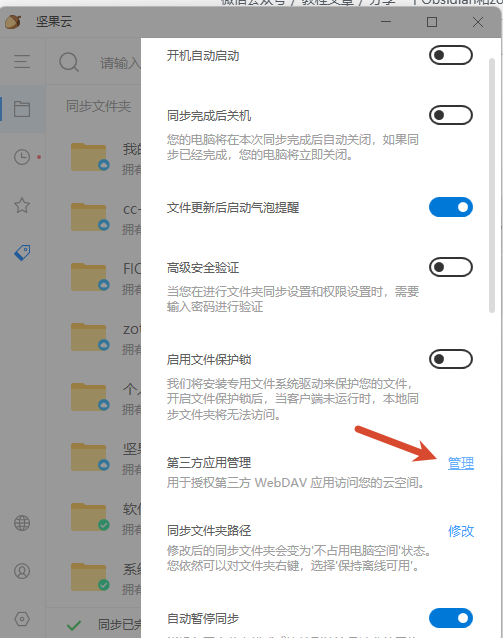
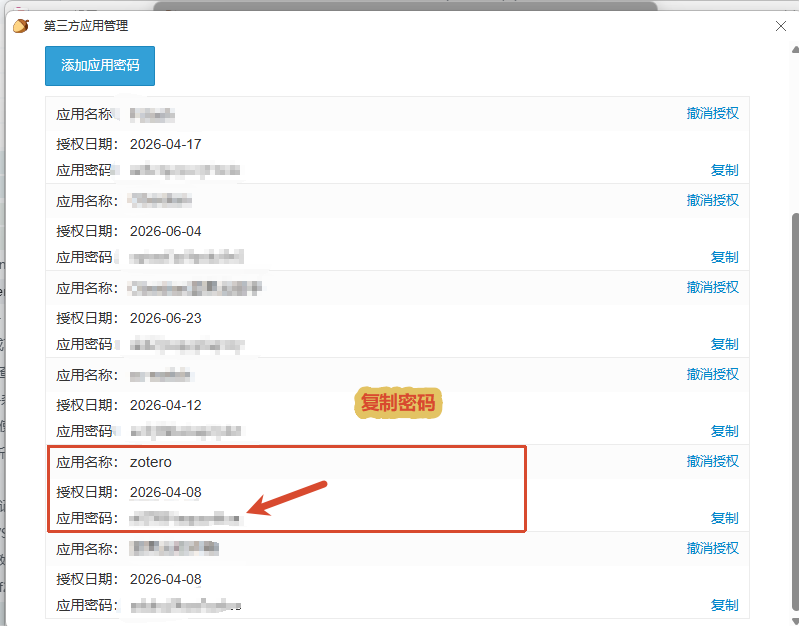
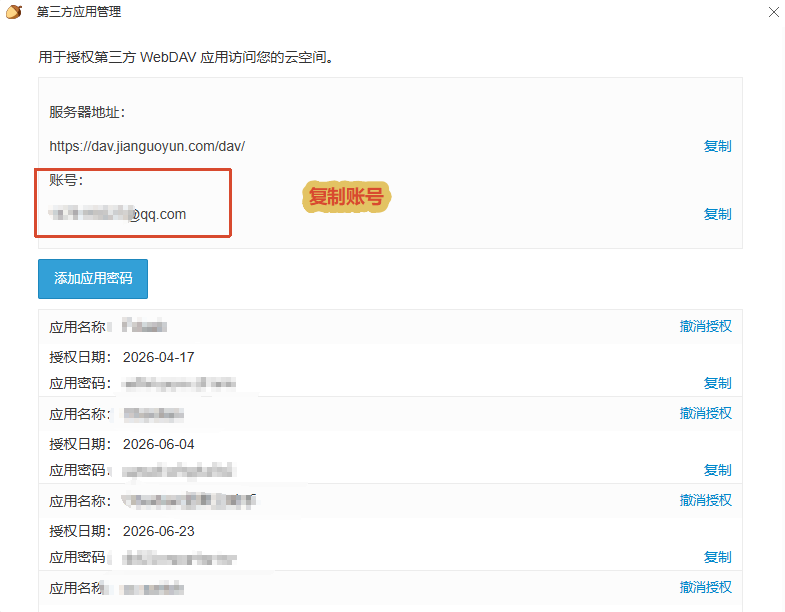
Then fill in the account password in the corresponding position
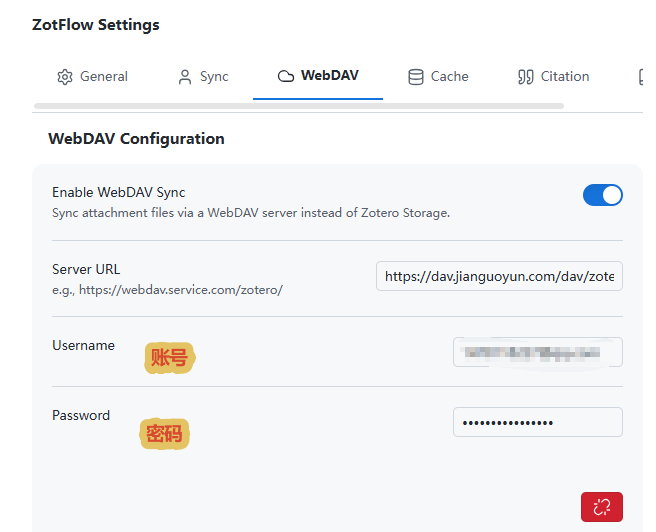
Note:
Server URL must contain
/zotero, pointing directly to the one where Zotero stores attachments zotero folder. This is different from the way you fill in the Zotero client: Zotero will automatically fill in the address after you fill it in zotero/, and ZotFlow does not, so you have to bring it yourself. For example: The configuration in Zotero is https://dav.example.com/dav, fill in here https://dav.example.com/dav/zotero.The same goes for other clouds (such as infinite). If you don’t know how to configure screenshots, just ask AI.
Scenario 2: Metadata + local link attachment
PDF → D:\ZoteroPapers
Zotero → Linked Attachment
ZotFlow → Linked Attachment Base Directory
ZotFlow does not copy files, it only reads the original PDF. Configuration location:
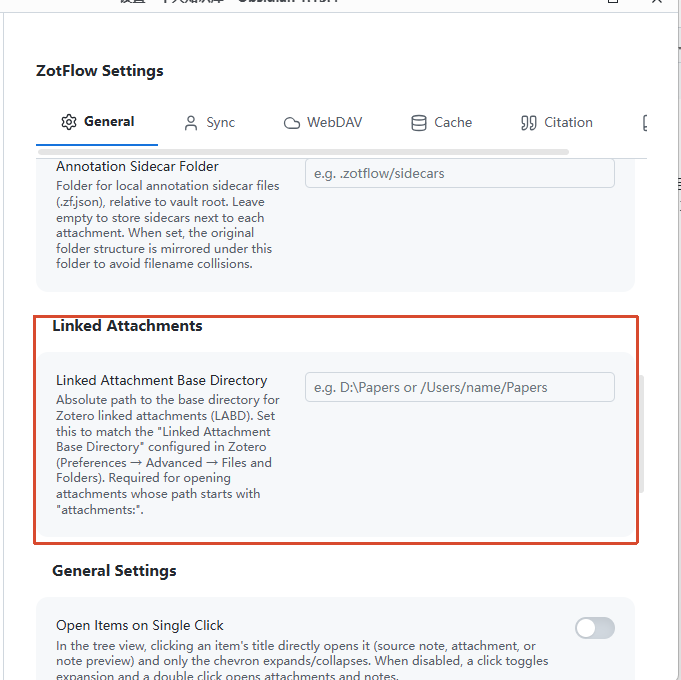
This method completely bypasses the Zotero 300 MB limit, but is only suitable for the desktop; after changing computers, you must synchronize the same attachment folder and configure the path correctly.
This method is generally not recommended, don’t ask me why!
Just wait until your computer breaks down and you need to reinstall the system!
How to use
1. General operation
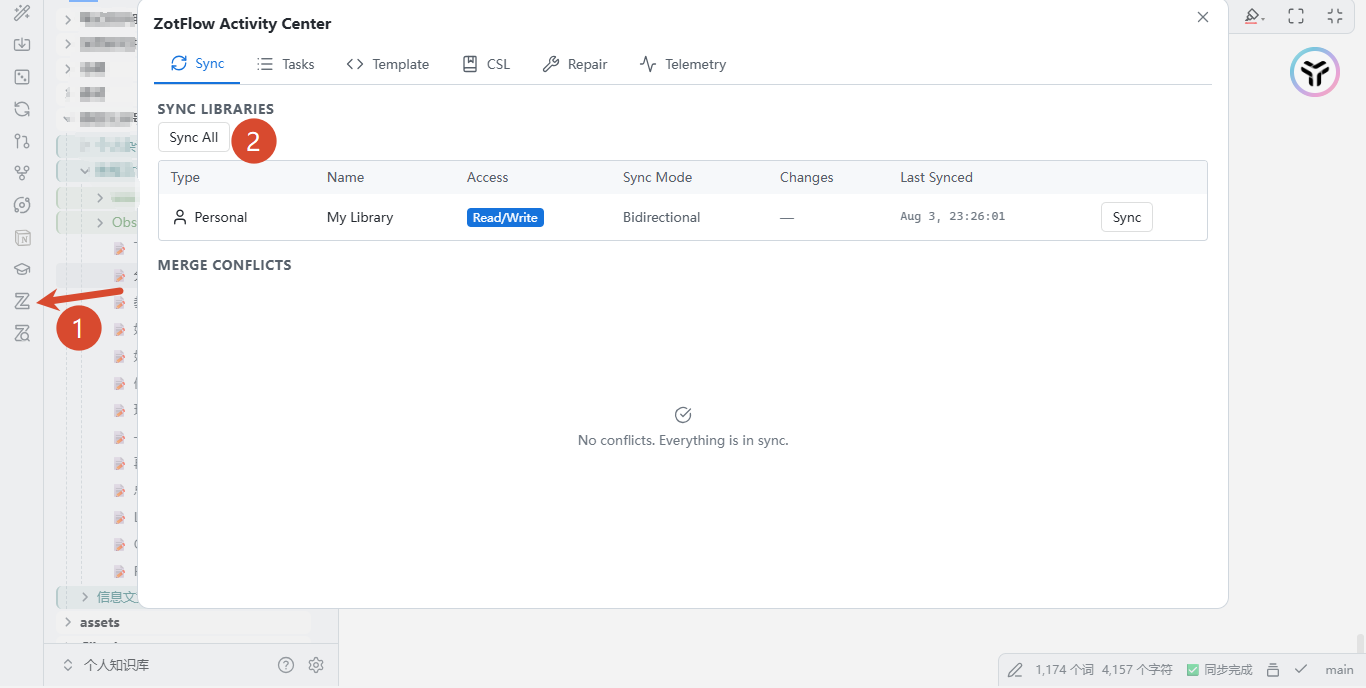
Click the sidebar icon and press Sync simultaneously.
You can also modify the configuration of notes here
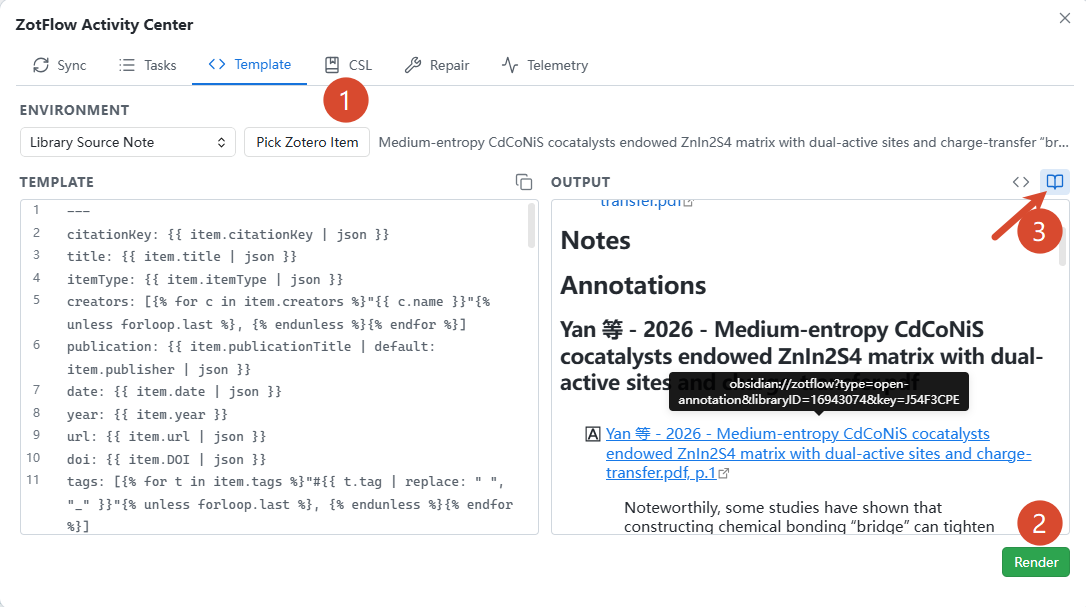
Click
Pick Zotero Item Select the document and press Render and preview icon to preview the effect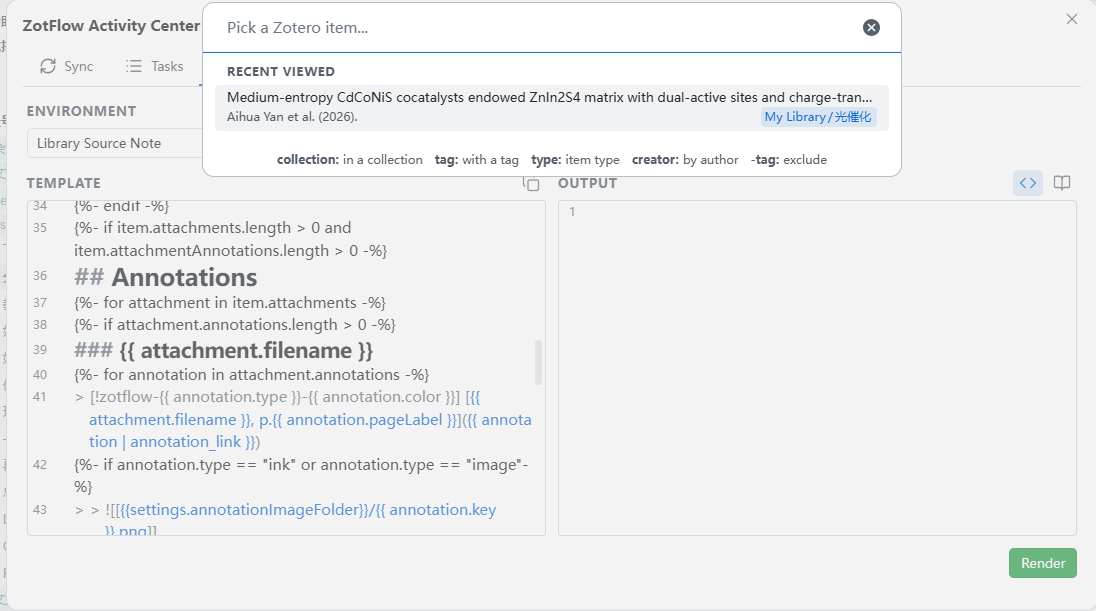
The templates here can be personalized. For this part, you can ask AI to help configure custom modifications.
You can also press and hold
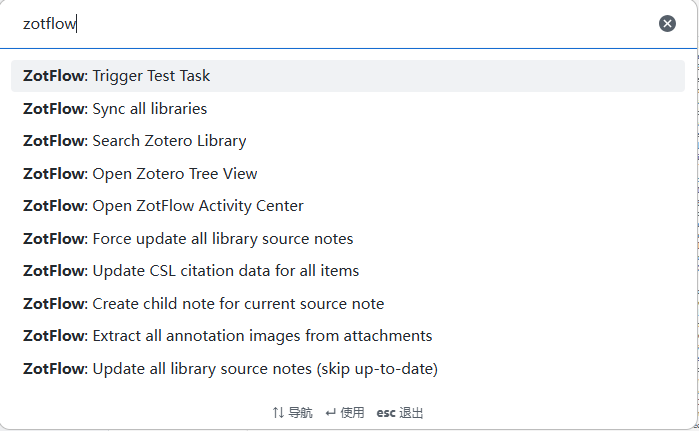
Ctrl/Command+P Call other commands through commandsFor example, open the file tree, insert CSL reference of the document, etc....
2. Insertion of literature citations
The easiest way to insert a bibliographic citation in ZotFlow is to type it in the Obsidian Editor
@@, search for the document and press Enter.1. Set the citation format first
Enter:
Key configuration:
Settings | Suggestions |
Default Citation Format | Select by use |
Trigger Character | keep @@ |
Citation Template | Keep the default initially |
The difference between the four formats:
- Wikilink: Generate
[[Literature notes|Author (year)]], suitable for knowledge base.
- Pandoc: Generate
[@citekey], suitable for paper writing and Pandoc export.
- Footnote: Generate Markdown footnotes.
- Citekey: only generate
@citekey.
ZotFlow will give priority to the citation key of the document; if there is no citation key, it will return the Zotero item key.
2. Input @@ Insert quote
Enter in Markdown editing mode:
Then the Zotero literature search box will pop up:
- Enter title, author or keywords;
- Select target documents;
- Press
Enter;
- The reference is inserted at the current cursor position.
For example, when selecting Pandoc format:
Trigger characters can be found in:
Modified in
.
3. Drag in from Zotero Tree View
Open ZotFlow Zotero Tree View, drag the document entry directly into the body of the note.
Note:
- Drag journal articles, books, etc. items: insert citations;
- Drag PDF or EPUB attachment: insert the attachment to open the link, not the literature citation;
- Drag annotation: Insert a quote with page number or annotation positioning.
You can temporarily switch formats while dragging:
Operation | insert format |
Drag directly | Default format |
Shift + drag | Wikilink |
Alt + drag | Pandoc |
Ctrl + drag | Footnote |
Ctrl + Shift + drag | Naked Citekey |
4. Insert quotation from PDF annotation
Select an annotation in ZotFlow Reader:
Copy the "Default Format Quote" and paste it into your notes.
will only copy the original text of the annotation. You can also right-click to annotate and select:
- Copy Default Citation
- Copy Pandoc Citation
- Copy Footnote Citation
- Copy Wikilink Citation
- Copy Embed
Pandoc and Wikilink templates can automatically bring in annotation page numbers.
5. Recommended configuration for formal paper writing
If you mainly accumulate knowledge in Obsidian, it is recommended:
If you are exporting Word, LaTeX or thesis through Pandoc:
If you need to directly generate APA, IEEE, Chicago and other formats, enter:
Select the default CSL style and output format. ZotFlow supports rendering formal citations and reference lists using citeproc, for example as used in the template:
and:
If you enter
@@ There is no pop-up window, and there are usually three checks: Zotero library synchronization has been completed, and the current Markdown editing mode is Trigger Character is still set to @@.Or it may conflict with other plug-ins. For example, my Yolo and Latex Suite shortcut keys conflict.
Synchronization effect
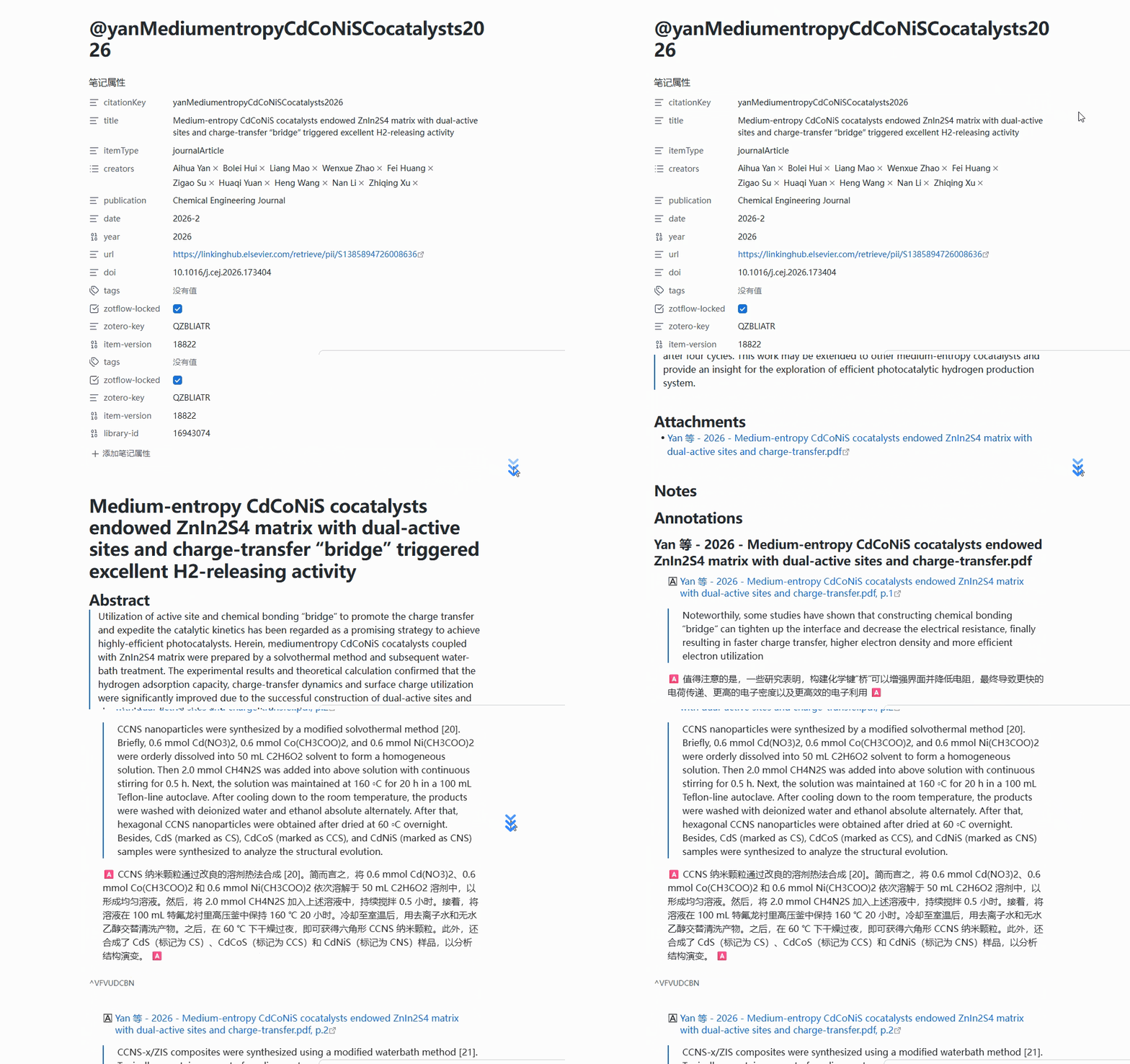
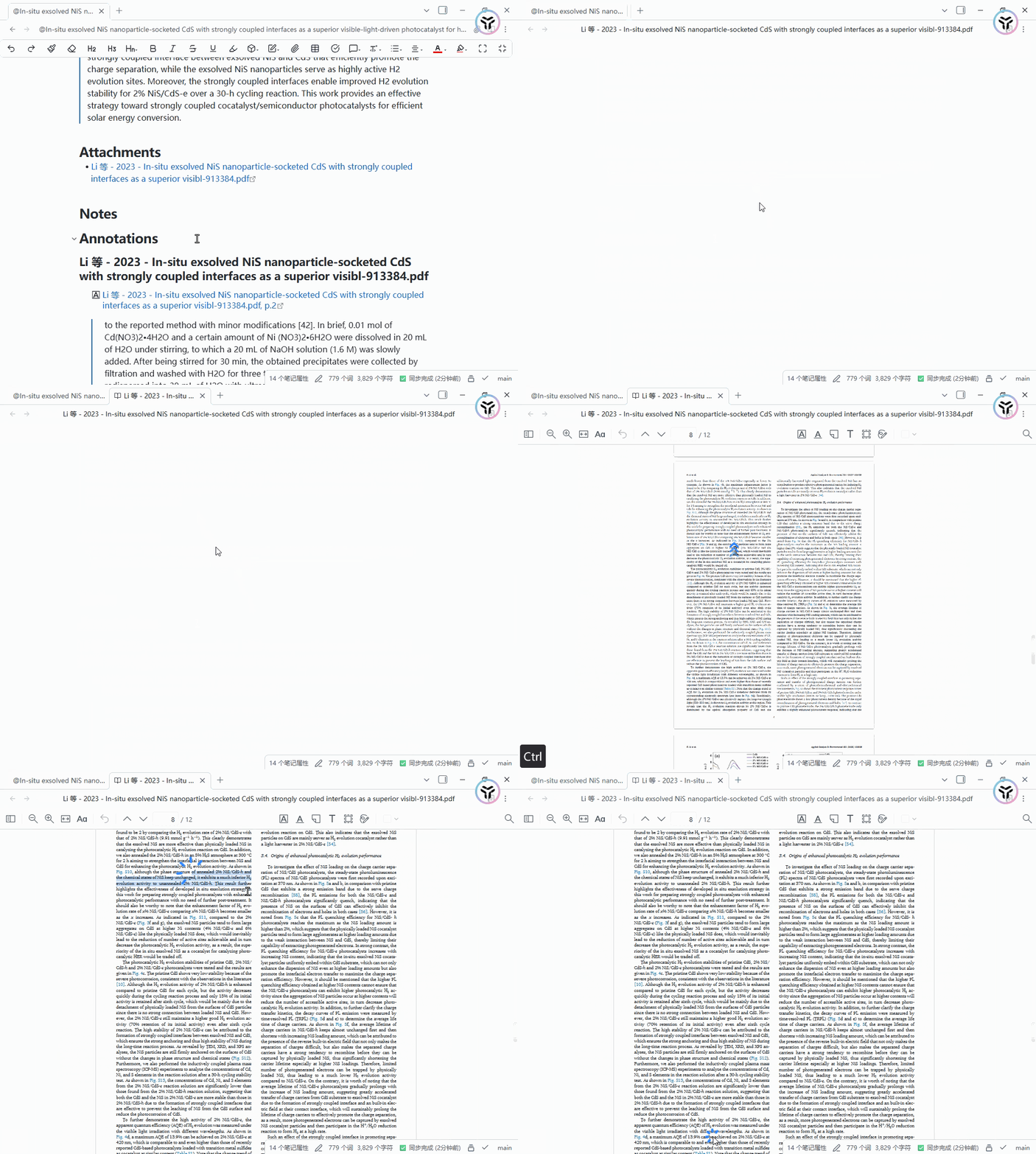
Then I annotate the PDF here in Obsidian and it will be synchronized to zotero, achieving two-way synchronization.
This plug-in is still under continuous development and maintenance. Compared with the previous Zotero Integration plug-in, it has not been updated or maintained for two or three years.
Finally, someone has improved on it and truly realized two-way synchronization.
I have used it for some time before, but it was still relatively early and there were some bugs. Now it is much more stable and there are basically no problems.
You can use it with confidence
Architecture design
ZotFlow usage Main thread + Web Worker Separate way to improve response speed:
- Main thread— Obsidian API, UI rendering (use React for complex views, native API for settings).
- Web Worker — Zotero API calls, synchronization engine, IndexedDB (Dexie), template rendering, PDF processing.
- Reader iframe — PDF/EPUB/HTML reader for Zotero, embedded and sandboxed via penpal.
Reference documentation
GitHub source code repository:
https://github.com/duanxianpi/zotflow
Project reference documents:
https://zotflow.peterduan.dev/zh/
Template configuration guide:
https://zotflow.peterduan.dev/zh/template-guide
Summary of template configuration variables:
https://zotflow.peterduan.dev/zh/template-variables
Finally, a few words from my heart
More than half a year has passed, and I have also struggled with the use and construction of many tools, and the scientific research efficiency has indeed improved a lot. In the past, switching back and forth between Zotero and Obsidian was very fragmented, but now annotations, citations, and notes are all connected, making it especially smooth when writing papers. Although occasionally some small details can be optimized, the overall stability is sufficient for daily use. I highly recommend it to friends who are also struggling with document management.
I have also developed a tool myself, which also does two-way linkage between zotero and Obsidian, but the positioning is different. My tool mainly adds a MinerU analysis literature as a bridge, and at the same time intervenes in the large model. One thing I have to do is to let the large model maintain my literature. Zotero and Obsidian maintain it at the same time. Then I need to let the large model analyze the literature across documents, chapters, and charts when interpreting the literature, so as to facilitate independent linking of literature gaps and literature reviews, especially for lazy people like me.
If you are interested, you can also pay attention to my project:
I am also a student like the author of ZotFlow. I use AI to do Vibe Coding in my spare time.
Committed to serving scientific researchers and fellow scientific research slackers in the AI era.
The light of humanity! Long live open source!
- Author:Sanmu
- URL:https://luffysite.top/article/Obsidian-to-zotero-zotflow
- Copyright:All articles in this blog, except for special statements, adopt BY-NC-SA agreement. Please indicate the source!
Relate Posts