
One day, I had a sudden idea
Since we use Obsidian every day to take notes and write papers,Why not just build Obsidian into a one-stop "personal intelligence aggregation center"?
The biggest benefit of reading RSS in the local knowledge base is:Once you see good content, core arguments, and literature conclusions, you can convert them into Markdown notes with just one click, and create two-way links directly!
Today I will take stock of two of the most powerful RSS reading plug-ins in the Obsidian ecosystem. By the way, I will share a set of my own "academic literature + independent blog" source configuration package, which can be used to copy homework directly!
Plug-in 1: Qiaomu AI RSS
If you like a minimalist and clean UI, and often need AI to help summarize or translate foreign language documents and long technical blog posts, then this is your first choice. Qiaomu AI RSS.
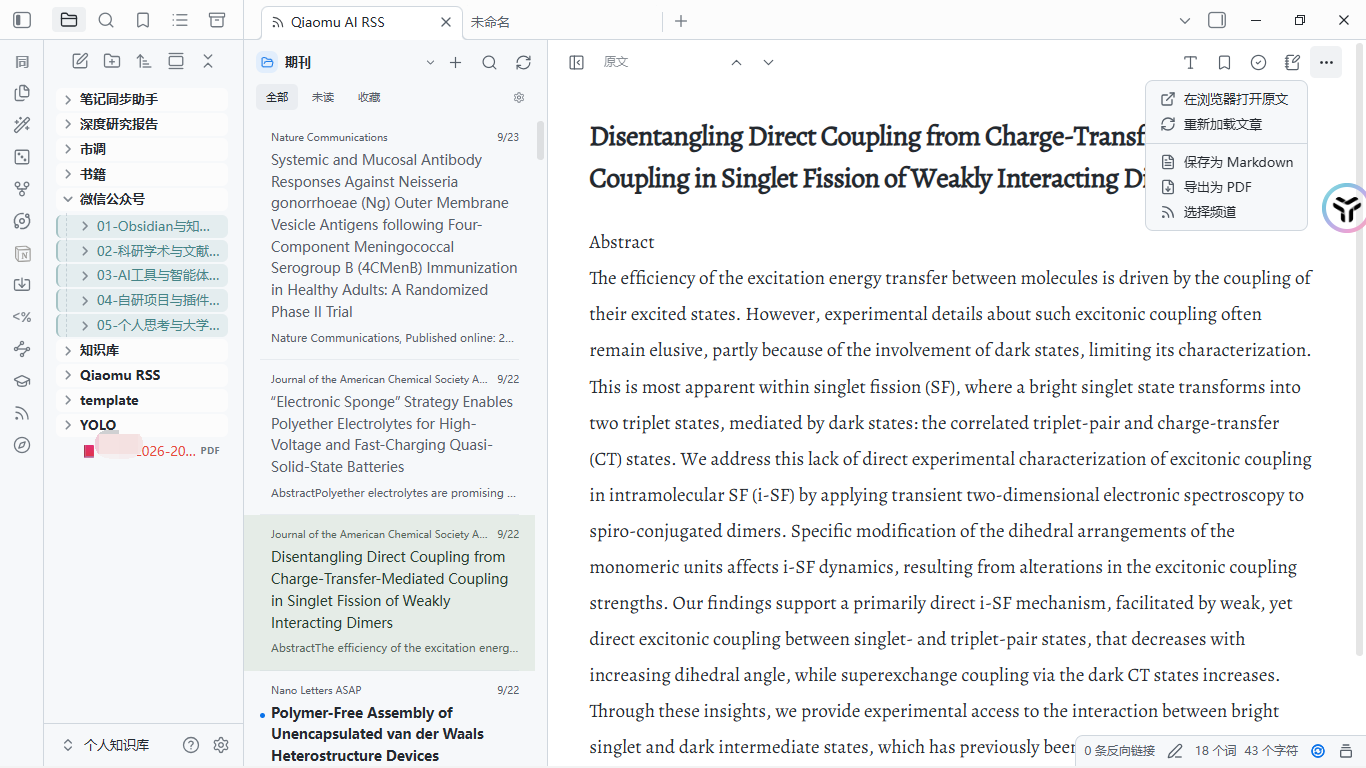
- Project address: https://github.com/joeseesun/qiaomu-ai-rss
- Core highlights:
- Modern card layout: The interface is very refreshing, the layout is comfortable, and the visual experience is comparable to native readers;
- Built-in AI translation and rewriting: Integrated AI assistance, can extract Chinese key points from long articles with one click;
- Comes with rich discovery sources: Novices don’t have to worry about where to find subscription links. The plug-in has built-in a large number of classified and selected sources.
Quick installation and configuration:
Search directly in the Obsidian community plug-in market
Qiaomu AI RSS Click to install and enable: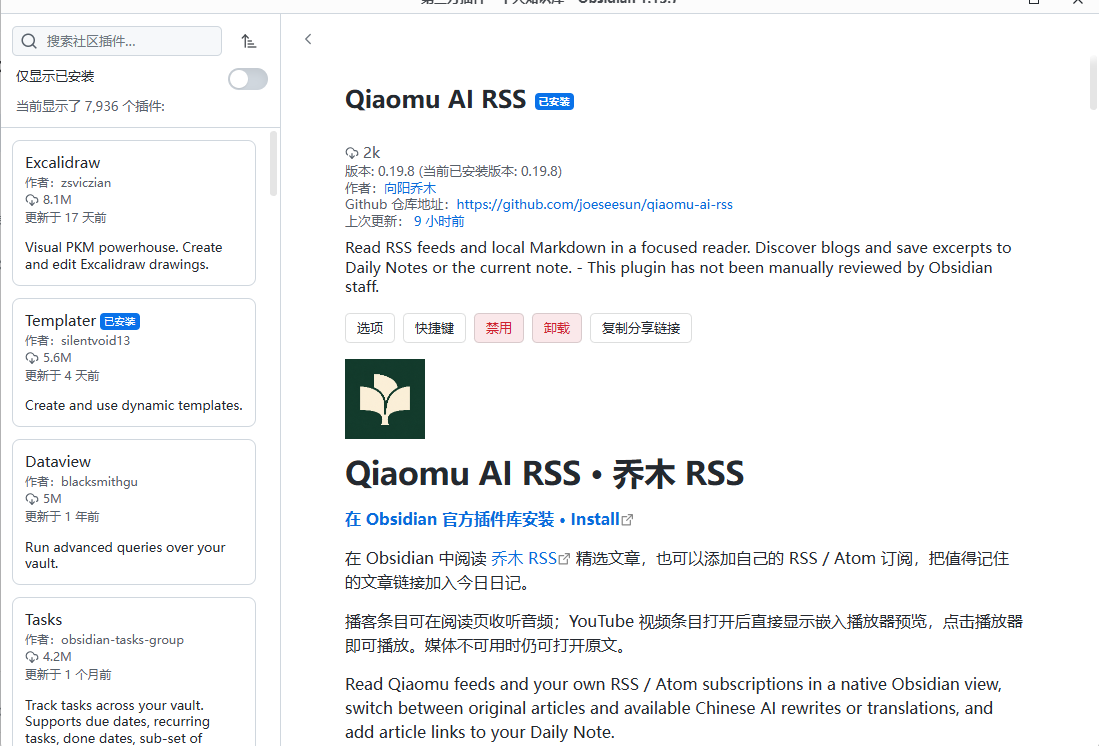
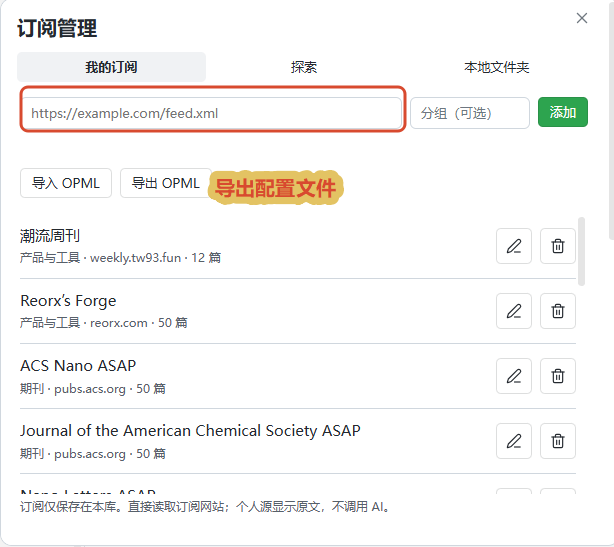
Enter "Settings" -> "Options" -> "Sources" -> "Manage Subscriptions":

Various ready-made channel categories have been thoughtfully built in here. You can just check and add them to use them out of the box.
How to add custom RSS such as scientific research documents?
In addition to the built-in sources, what scientific research dogs need most are mostly Nature, Science, arXiv or the journal Frontiers of a top conference.
If you can’t find the RSS link for a specific journal, here’s a lazy trick:Open AI directly (or use your Coding Agent) and ask:
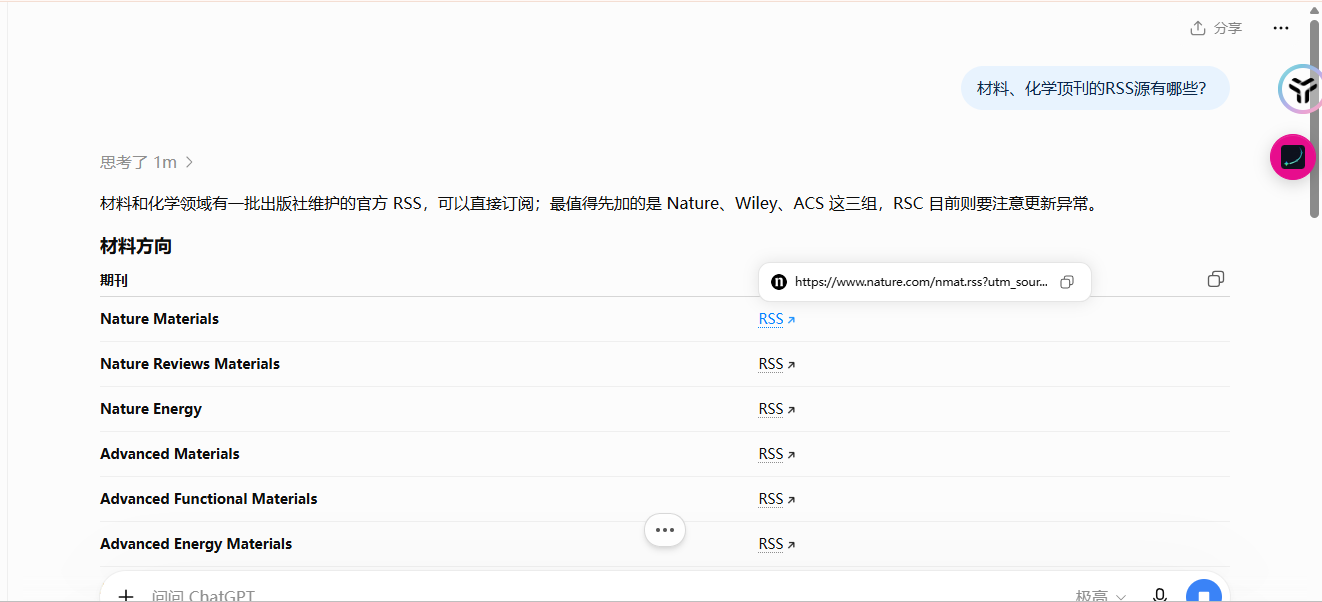
After getting the link, click Import in Subscription Management or paste it manually:
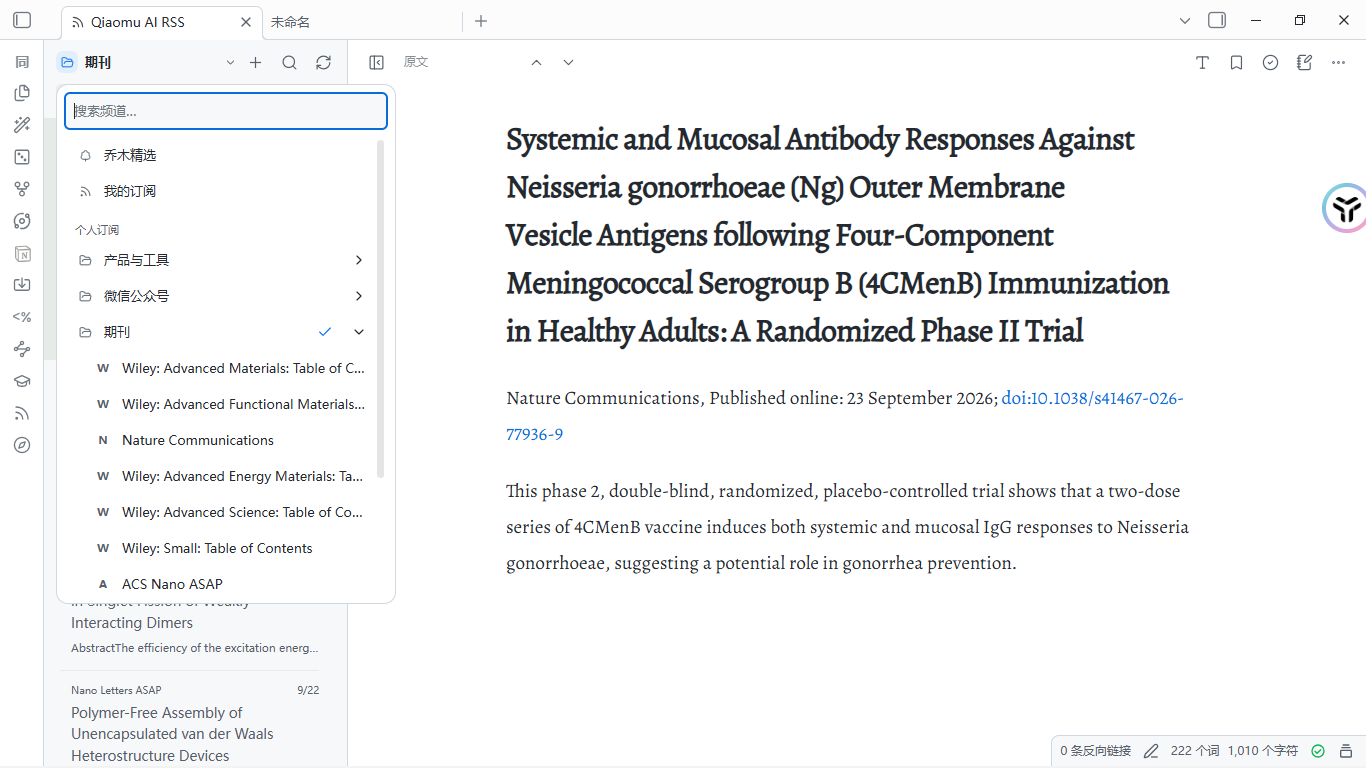
After the import is successful, you can browse articles in the reading view:
Plug-in 2: RSS Dashboard
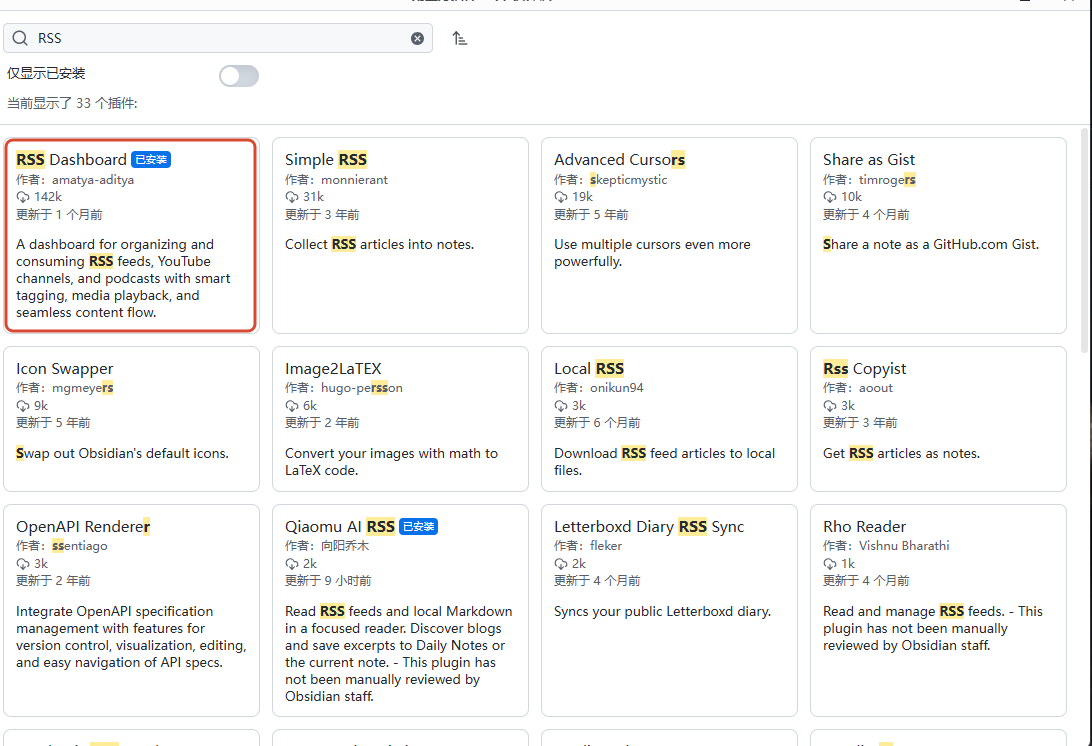
If you pursue Absolute fluency, massive source management and in-depth knowledge base transfer, then the most mature one currently recognized by the community must be RSS Dashboard.
Project address:https://github.com/amatya-aditya/obsidian-rss-dashboard
- Core features:
- Extremely robust performance: Supports sharded storage (Shard Mode), no matter how many subscriptions you have, your Obsidian will not be stuck;
- More than just pictures and text: Native support for RSS, Atom, JSON feeds, and even embedded YouTube video player and podcast audio playback bar (with playback progress memory!);
- Convert local Markdown notes with one click: When you encounter a good article, click to save it directly to your Vault warehouse. It supports custom frontmatter tags and templates, and is perfectly integrated into Daily Notes.
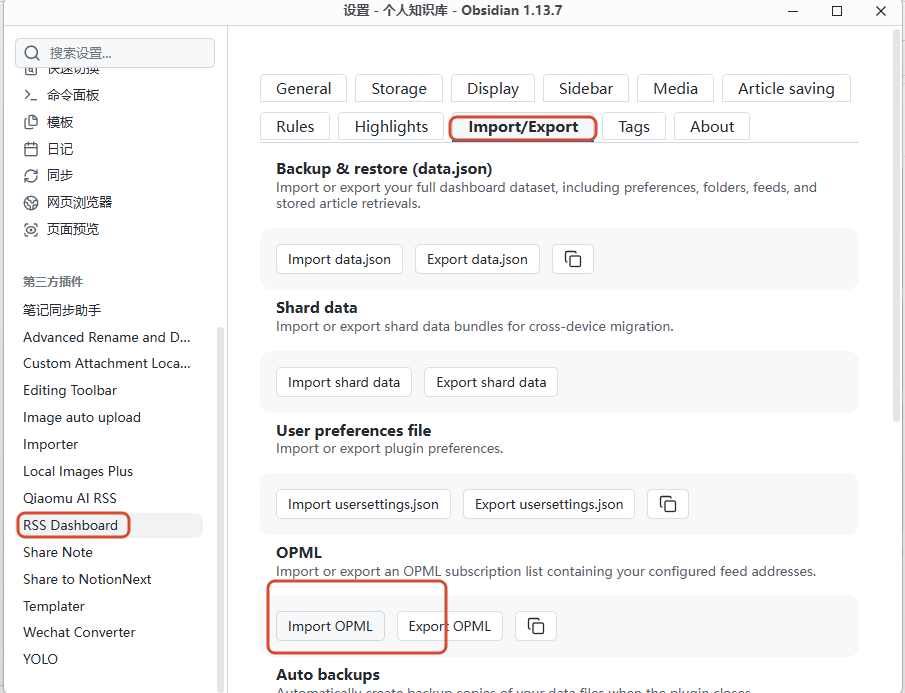
OPML seamless migration
After selecting the source in Qiaomu AI RSS, directly click Export as
OPML file.Then install and open the community plug-in RSS Dashboard, found in settings Import, throw in the OPML file just now:
Click the RSS dashboard icon in the left sidebar, and a professional, compact, and high-density reading board will be born
3. Where can I find high-quality RSS feeds?
Anticipate that you might say: "The tools are installed, but I don't know what to order?"
Don’t worry, here are a few sources I recommend to you that I read every day:
1. Chinese independent blog collection
A treasure trove of truly in-depth and independent personal blogs on the Chinese Internet:
It contains the blog RSS of hundreds of technology tycoons, independent developers, and scholars, and the quality is high in various marketing accounts!
2. My personal selection of OPML subscription packages
In order to save you the trouble of finding links one by one, I have configured a set of integration packages for my own use:
Cover In-depth blogs, technology videos, cutting-edge academic literature, hard-core columns:
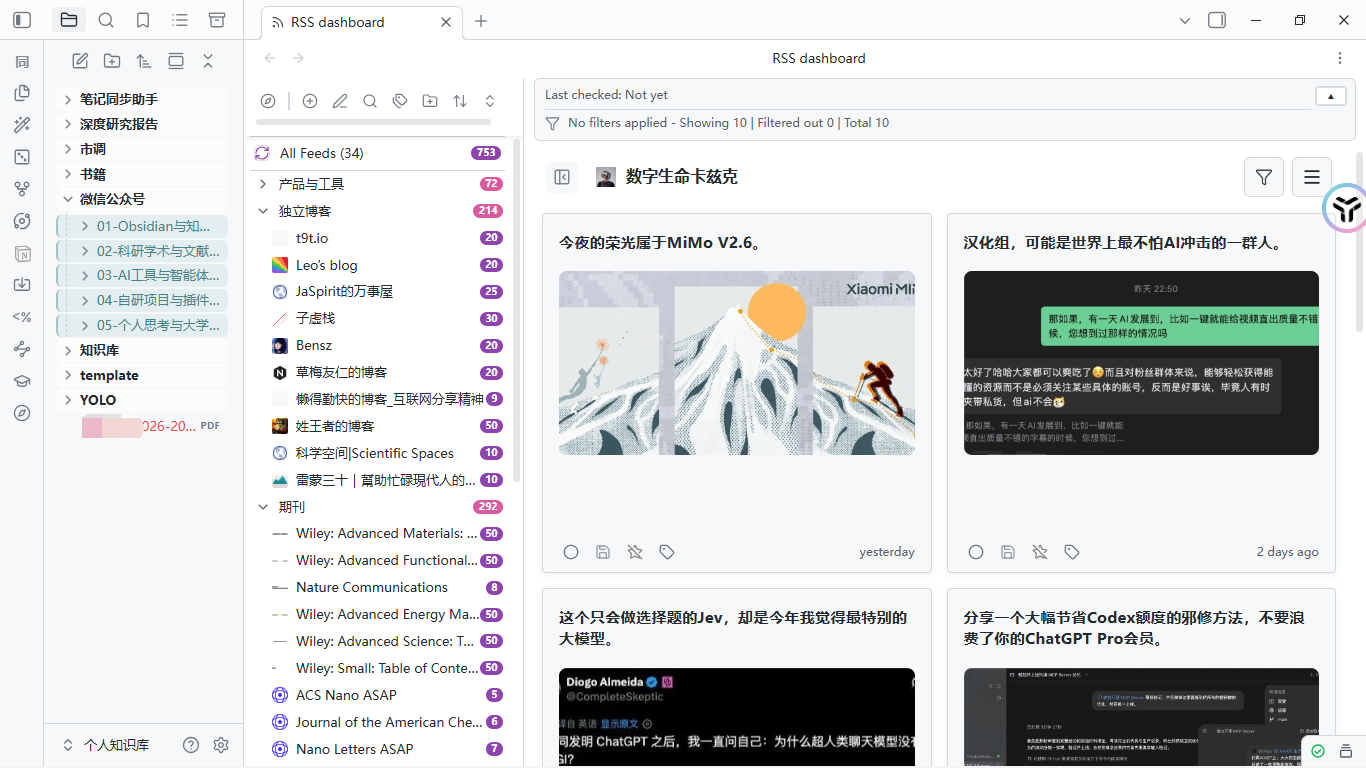
If you want to copy the homework directly, open the link below in your browser to automatically download the OPML file. After downloading, you can import it in the plug-in with one click:
📥 Download address:
Finally, I would like to say a few words:
- If you want information to be highly closed-loop:
Used within Obsidian
RSS DashboardorQiaomu AI RSSis the most worry-free. Annotate as you read, and the excerpts of golden sentences are seamlessly linked to the two links, truly achieving the three-in-one "collection-reading-precipitation".
- If you don’t want to bloat your local Vault with a lot of information flow: You can also use the now popular open source next-generation information reader Folo As the main scanning tool: Official website address:https://folo.is
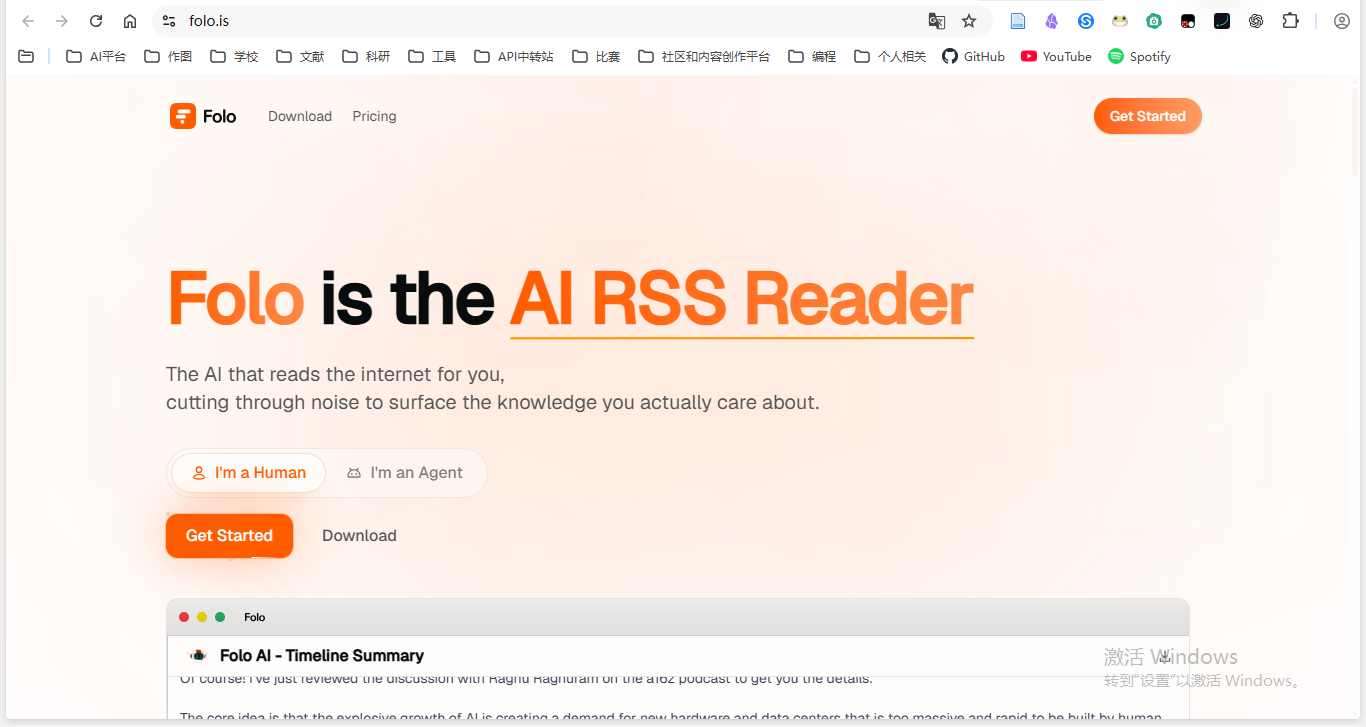
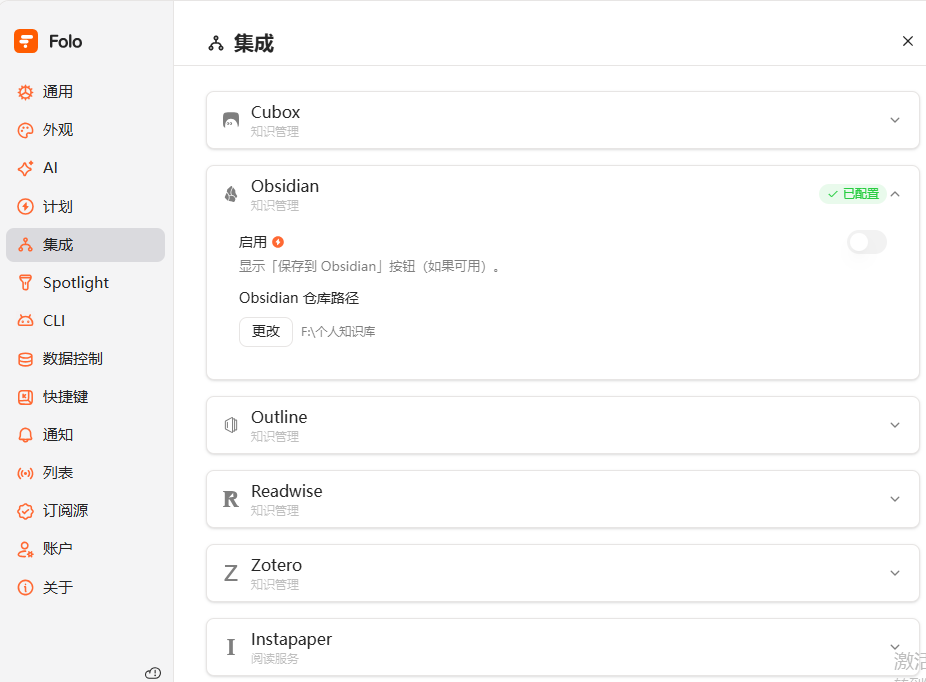
Currently, it also supports integration with Obsidian and customized AI BYOK, but membership is required. Of course, you can use the Agent operation CLI as an alternative.
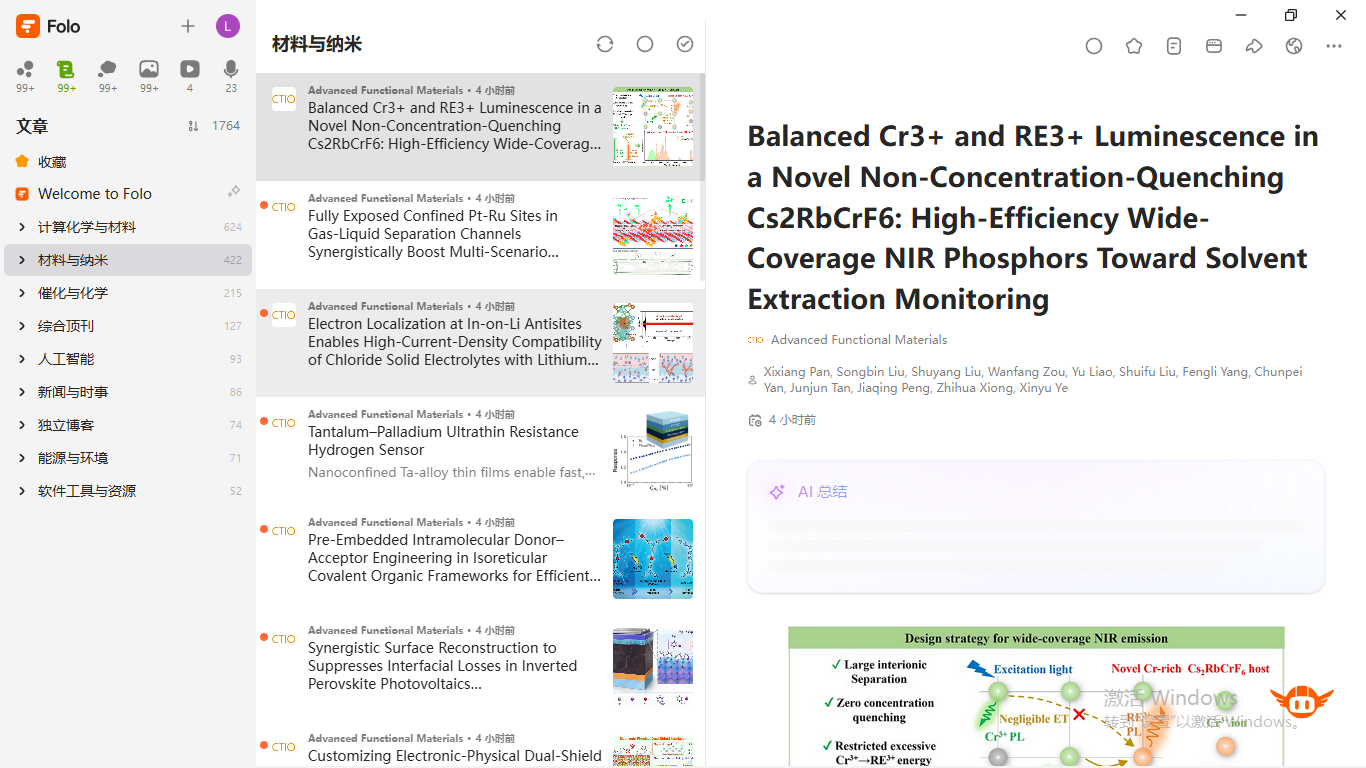
I still prefer this refreshing interface style, and it supports Android synchronization
It is positioned as an AI RSS reader, focusing on letting AI help you filter out network noise and quickly refine the content you really care about. You can usually use it to do extensive external information flow browsing and see good articles that are truly worthy of long-term preservation.
I highly recommend the two options mentioned above. You can choose according to your own reading rhythm.
So, the above is the entire content of this issue. Thank you for your support all the way. This is my 62nd original article. Thank you all!
See you next time.
- Author:Sanmu
- URL:https://luffysite.top/article/obsidian-rss-journal-radar
- Copyright:All articles in this blog, except for special statements, adopt BY-NC-SA agreement. Please indicate the source!
Relate Posts

From Zotero to Obsidian: Turn Papers into Linked Notes with One Skill

Connect Codex to DeepSeek: A Zotero and Obsidian Research Workflow

ZotFlow: Connect Obsidian and Zotero in Both Directions

Sync Obsidian Notes to Notion

My Obsidian Web Clipper Templates

A Complete Setup Guide for PDFMathTranslate and pdf2zh